
Save LinkedIn profiles to Google Sheets in one click
If your prospecting starts on LinkedIn, you know the drill: profile open in one tab, spreadsheet in the other, and ten minutes of copy-paste for every handful of leads. Name, headline, company, location, then over to the company website for an email address and a phone number. It works, but it is slow, and it is exactly the kind of work a browser should do for you.
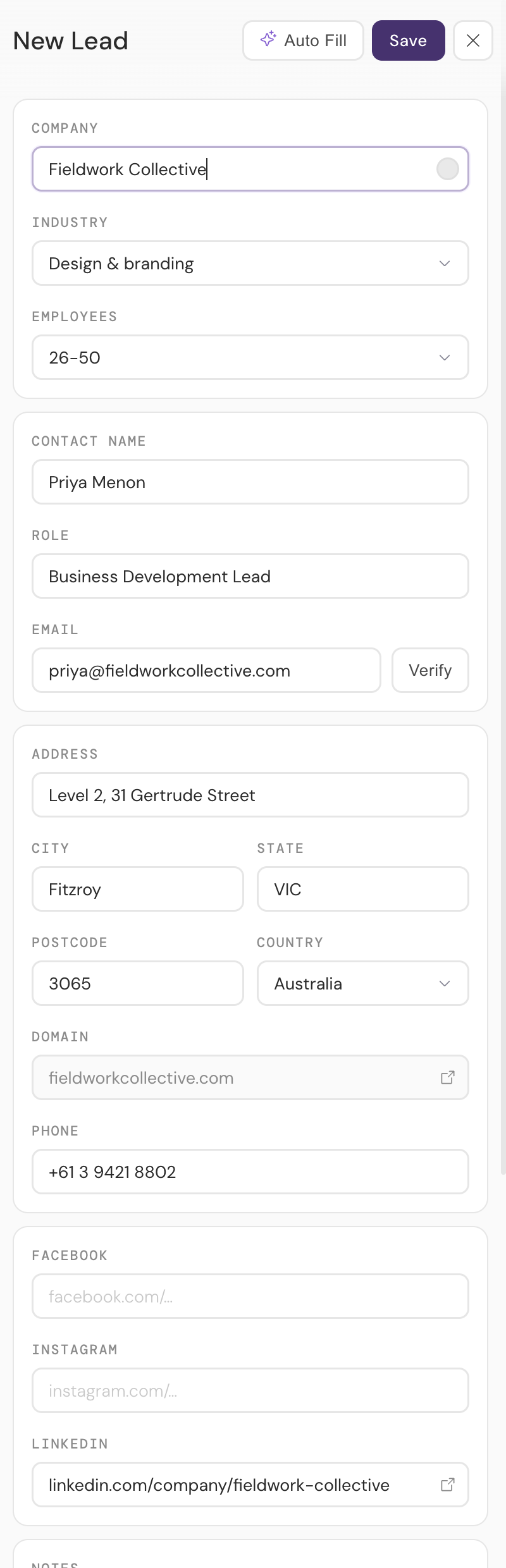
LeadGen is a Chrome extension that does that transfer for you. It opens as a side panel next to whatever page you are on. On a LinkedIn profile, hit Auto Fill and it reads the visible page and fills the lead form: contact name, role, company, and location. Check the fields, correct anything you like, and save. The lead lands as a new row in a Google Sheet in your own Drive.
Step by step: from profile to spreadsheet row
- Install LeadGen from the Chrome Web Store and pin it to your toolbar. On first open, sign in with Google and let it add the lead tracking template to your own Drive — that sheet is where every lead will land.
- Add your AI key in settings: pick a provider, paste a key. This is what reads the page for you, and it is the only running cost — usually a fraction of a cent per lead.
- Open a LinkedIn profile and open the LeadGen side panel. Hit Add, then Auto Fill. The form fills with the contact's name, role, company and location, read straight off the page.
- Fill the gaps from the company site. Click through to the company's website and run Auto Fill again — the email address, phone number and street address usually live there. Each pass adds to the same lead.
- Verify the email with the Verify button, so you know the inbox exists before the address joins your list.
- Save. The lead appears as a new row in your sheet, and the panel's dashboard counts it toward your daily target.
LinkedIn rarely has the whole lead. That is fine.
A profile gives you the person; the company website gives you the rest. LeadGen is built for that two-step reality. You can run Auto Fill more than once while building a single lead: start on the company site to pick up the email address, phone number, and street address, then run it again on the LinkedIn profile to fill in the contact's name and role, or work in the other order. Each pass fills the gaps instead of starting over.
No duplicates when you come back
Revisit a company you have already captured and LeadGen recognises it by its website domain. Instead of writing a second row, it offers to update the existing lead or add another contact to it. Your sheet stays one row per company, not one row per visit.
What ends up in the sheet
Every saved lead is a full row: company, industry, employee count, contact name, role, email address, phone, address, city, country, website domain, social links, notes, and the date you captured it. The sheet is yours, in your own Google Drive, so you can filter it, share it with your team, or export it anywhere.
What you need
The extension is free with Google Sheets. Auto Fill uses an AI provider key that you bring yourself, and reading a page typically costs a fraction of a cent with your provider. You can also type leads in by hand without any key at all. See the answers to common questions on the main page, or read the privacy policy for exactly what is read and where it goes.
Common questions
Does it work on LinkedIn company pages as well as profiles?
Yes. Profiles, company pages, plain company websites, and directories all work — and you can combine them, running Auto Fill on each while building one lead.
Is this bulk scraping?
No. LeadGen reads one page at a time, only when you click Auto Fill, and only the content you can already see in your browser. There is no background crawling and no bulk export.
Where does the email address come from?
LinkedIn rarely shows one. The usual pattern is a second Auto Fill pass on the company's own website, where contact addresses tend to live. Once you have an address, the built-in verifier tells you whether the inbox actually exists before you save it.
Do I need a paid LinkedIn subscription?
No. LeadGen reads whatever your own LinkedIn account can see in the browser. A paid plan shows you more, but nothing about the extension requires one.
More guides: using Google Sheets as a simple CRM · verifying email addresses before you send · the free lead tracking template