
Free lead tracking template for Google Sheets
A ready-made lead tracking spreadsheet with the columns that actually matter for prospecting: who the company is, who your contact is, whether their email address is real, and where the lead came from. It is the same layout the LeadGen Chrome extension writes to, so you can start by hand today and automate the data entry whenever you like.
Free · No sign-up · 21 columns · Two example rows to delete
Set it up in Google Sheets
- Download the CSV above.
- In Google Sheets, open a blank spreadsheet and choose File → Import → Upload, then select the file.
- Pick Replace spreadsheet when asked, delete the two example rows, and start adding leads.
If you install the LeadGen extension instead, you can skip all of this — it creates the template in your own Google Drive during setup, and every lead you capture lands as a new row.
What each column is for
| Column | Field | What goes in it |
|---|---|---|
| A | Created | Date the lead was captured |
| B | Company | Company name |
| C | Industry | What the company does |
| D | Employees | Size bracket, e.g. 2-5, 26-50, 251-500 |
| E | Name | Contact's full name |
| F | Role | Contact's job title |
| G | Contact's email address | |
| H | Status | Email verification verdict: Valid, Invalid, or Unknown |
| I | Address | Street address |
| J | City | City or suburb |
| K | State | State or region |
| L | Postcode | Postal code |
| M | Country | Country name |
| N | Domain | Company website domain — the lead's unique key |
| O | Phone | Phone number |
| P | Facebook page link | |
| Q | Instagram profile link | |
| R | LinkedIn company or profile link | |
| S | Notes | Anything worth remembering |
| T | Source | Where the lead came from: Website, LinkedIn, Referral… |
| U | Agent | Who captured it — useful on shared sheets |
Three habits that keep the sheet useful
- One row per company. The company is the lead; extra contacts at the same company get their own row sharing the same Domain value, so a filter on Domain shows the whole account.
- Treat Domain as the key. Before adding a company, search the sheet for its domain. It is the one value that never varies in spelling the way names do.
- Fill Status before any outreach. A list where every address has been verified once protects your sender reputation — see how email verification works.
The template, minus the typing
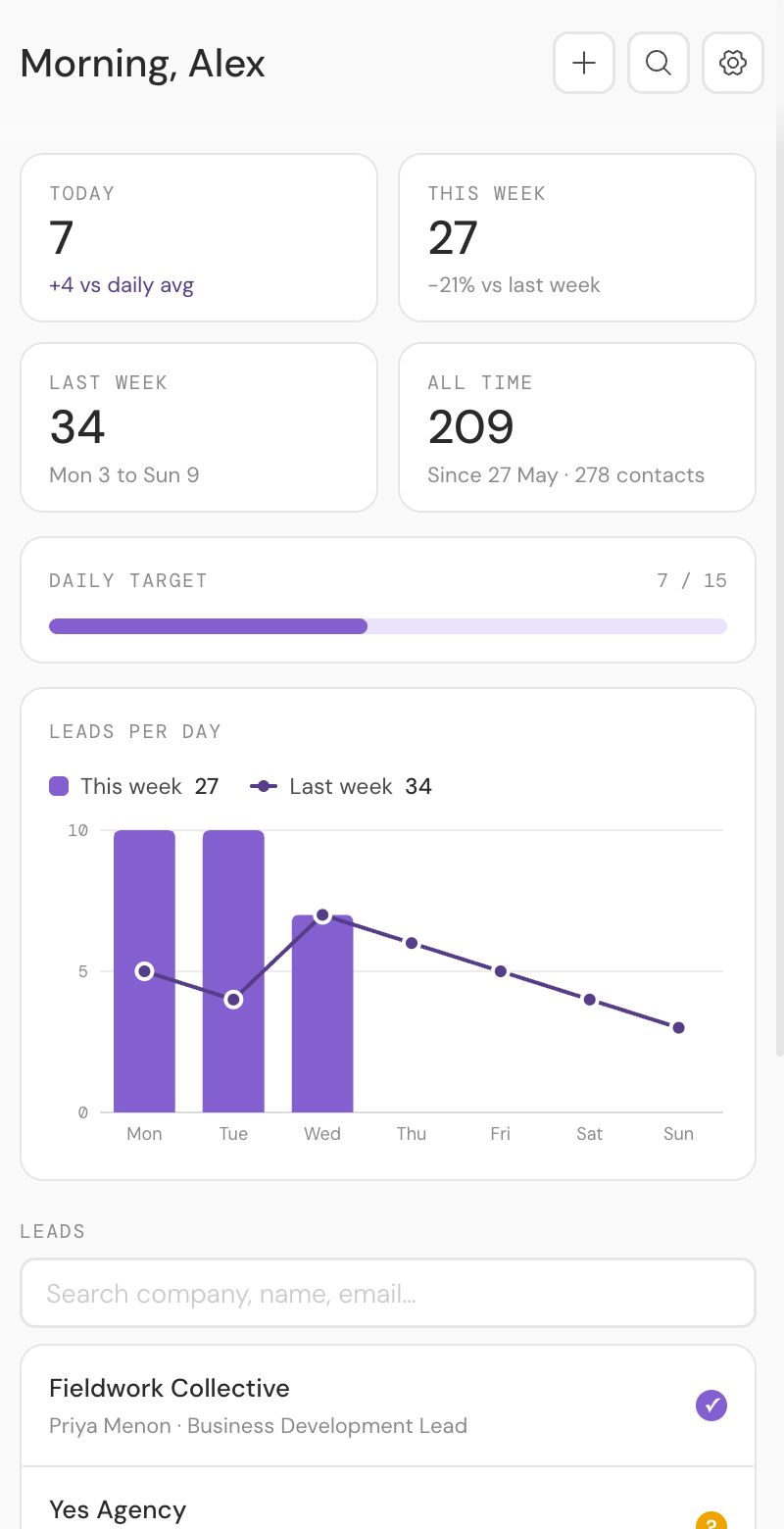
This layout is exactly what the LeadGen Chrome extension maintains for you. Open its side panel on any company website or LinkedIn profile, click Auto Fill, review the fields, and the row writes itself — deduplicated by domain, with a built-in dashboard of your daily and weekly capture counts.
Common questions
Is the template really free?
Yes. The CSV download is free with no sign-up, and the LeadGen extension is free to use with Google Sheets. You only pay anything if you choose Wiplist, a paid CRM, as your destination instead.
Do I need the LeadGen extension to use the template?
No. The template is a plain spreadsheet and works on its own. The extension is what removes the data entry: it reads company and contact details off the websites you visit and writes them into the sheet as new rows.
Can I add my own columns?
Add extra columns to the right of Agent (column U) and they are yours to use freely. Keep columns A through U in their original order though — the LeadGen extension reads and writes the sheet by position, so reordering or deleting those columns breaks the connection.
Why one row per company instead of one per contact?
The company is the lead; contacts belong to it. Extra contacts at the same company are added as rows sharing the same Domain value, so the Domain column groups them and the lead is still counted once.
More guides: using Google Sheets as a simple CRM · saving LinkedIn profiles to Google Sheets · verifying email addresses